How to delete a user of supplier account
Goal
Remove a user from the ViSN platform by deleting their account. This action permanently removes the user's access and account information from the system.
Related Articles
- Edit User Details (link when published)
- Invite a New User (link when published)
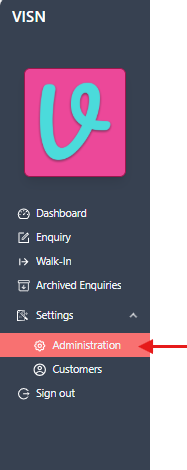
Navigate to Administration
- From the left navigation menu, expand
Settingsby clicking on it - Select
Administrationfrom the Settings submenu
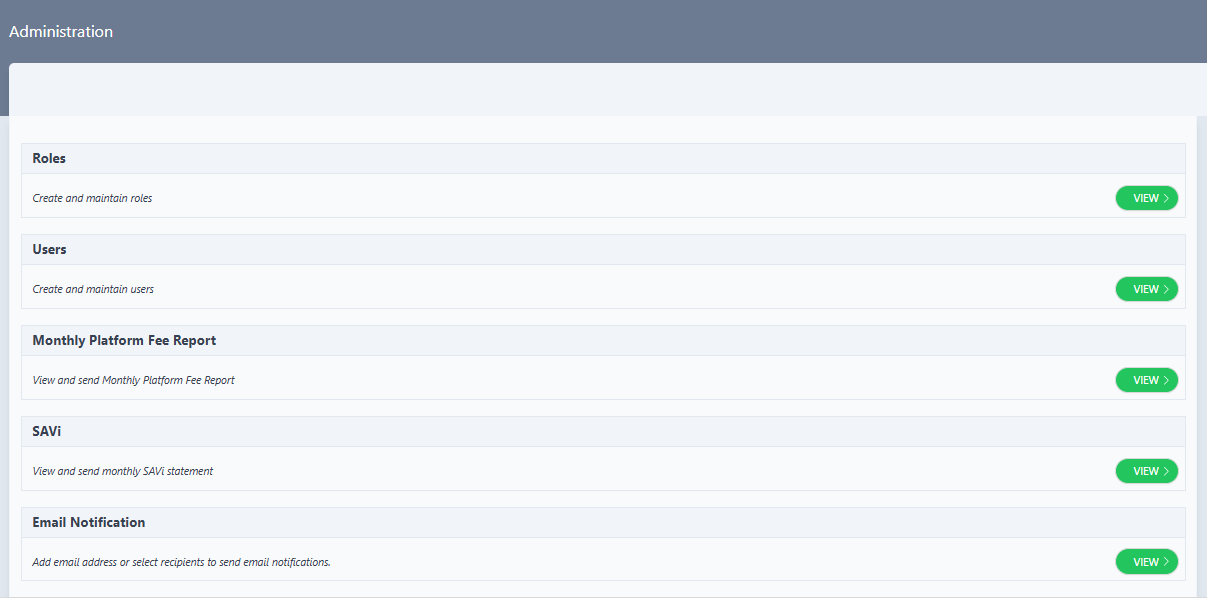
- The Administration page displays with several administrative options
Access Users Management
- On the Administration page, locate the Users section
- The Users section displays:
- Title: "Users"
- Description: "Create and maintain users"
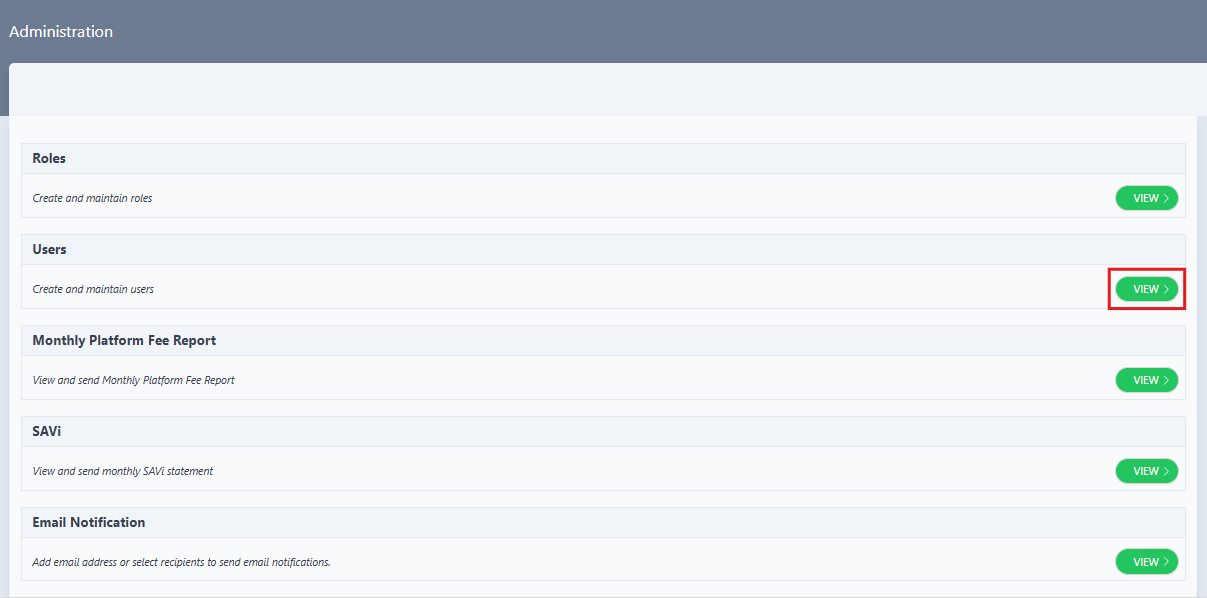
- Click the
VIEW >button on the right side of the Users section
View Users List
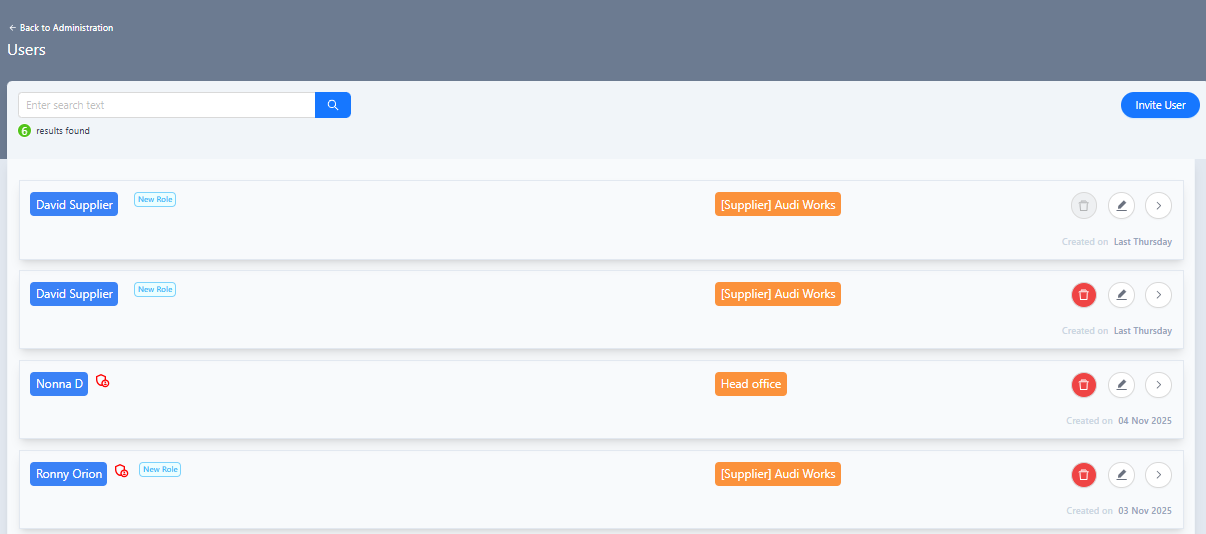
- The Users page opens, displaying a list of existing users
- The Users page shows:
- An
Invite Userbutton to invite new users - A table listing existing users with relevant information
- Action icons for managing users (edit, delete, view)
- An
Locate the User to Delete and Open Delete Confirmation
- Scroll through the users list or use the search/filter functionality to find the account to delete
- Identify the account by:
- Name
- Role
- Site assignment
- Click the delete icon (typically a trash/bin icon) next to the user's entry
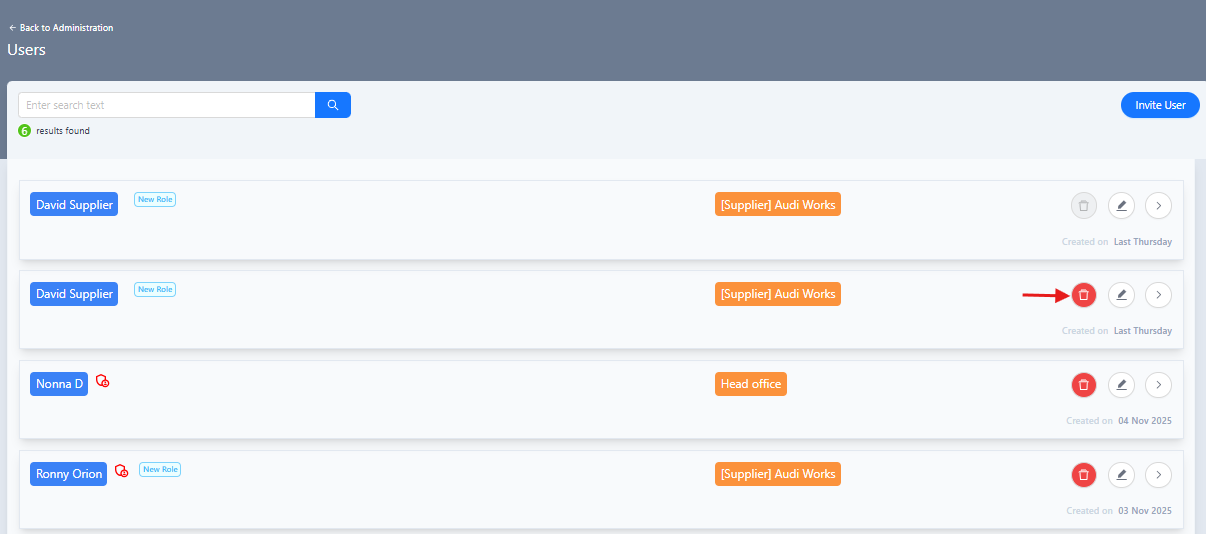
- A confirmation dialog opens to confirm the deletion

Delete User Warning
Deleting a user is a permanent action that cannot be undone. The user will lose all access to the ViSN platform immediately.
Confirm User Deletion
- Review the confirmation dialog carefully
- The confirmation dialog displays:
- A warning message: "This will delete the user account"
- Two action buttons:
Cancelbutton to abort the deletionDeletebutton to proceed with the deletion
- Click the
Deletebutton to confirm and proceed with the deletion
Cancel Option
To cancel the deletion, click the Cancel button on the confirmation dialog. The user account will remain unchanged.
Verify User Deletion
- After clicking the
Deletebutton, a success notification appears in the top right corner of the screen - The notification displays:
- A green checkmark icon indicating successful deletion
- Title: "User Deletion"
- Message: "The User has been deleted"
- The notification automatically disappears after a few seconds
- The user is immediately removed from the users list

Troubleshooting
User Management View button is disabled
Problem: The "View >" button is disabled on the Administration page.
Solutions:
- Verify the account has administrator permissions
- Check that the logged-in account has user management access
- Contact the system administrator if the issue persists
Accidental deletion
Problem: A user was deleted by mistake.
Solutions:
- Contact the system administrator immediately
- The user will need to be re-invited if the account cannot be restored
Related Tasks
- Edit User Details: Modify user information instead of deleting
- Invite a New User: Add a new user to replace the deleted one
Status: Draft
Category: Protected
Authored By: Arun Kumar on December 03, 2025
Revisions