How to edit a role for supplier
Goal
Modify an existing role's permissions to control user access to different features within the system.
Related Articles
- How to add a new role (link when published)
- Assign Role to User (link when published)
If a user is assigned as a super user, all role permissions are not applicable. Super users have full access to all features within the system, regardless of the permissions configured for their assigned role.
Navigate to Administration
- From the left navigation menu, expand
Settingsby clicking on it - Select
Administrationfrom the Settings submenu
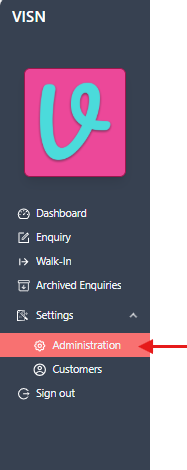
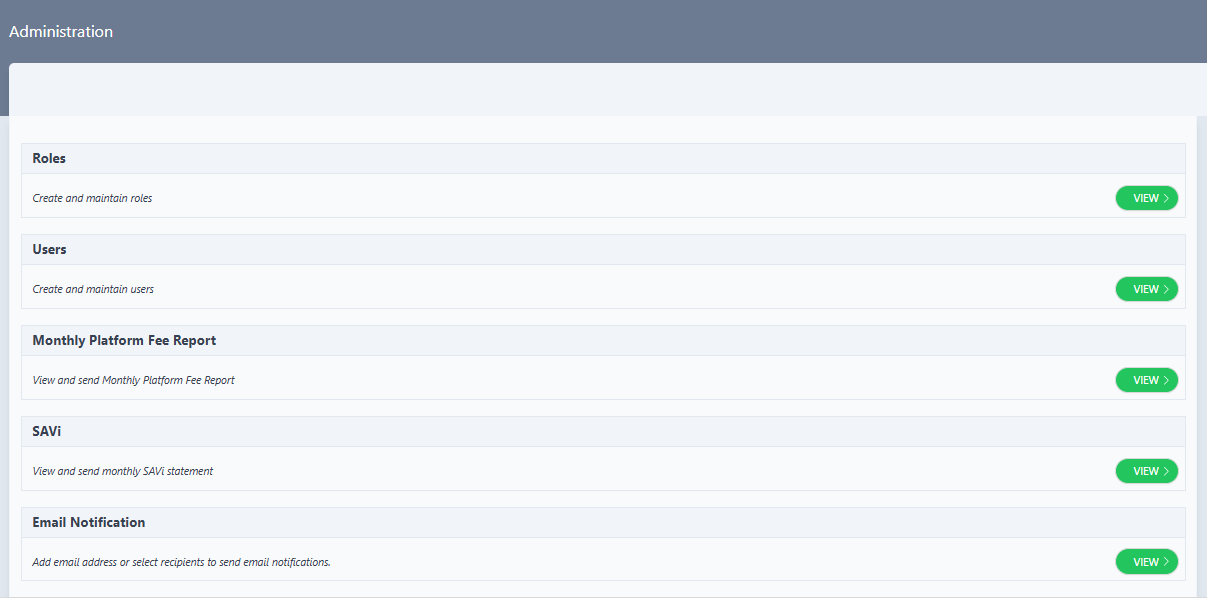
- The Administration page displays with several administrative options
Access Roles Management
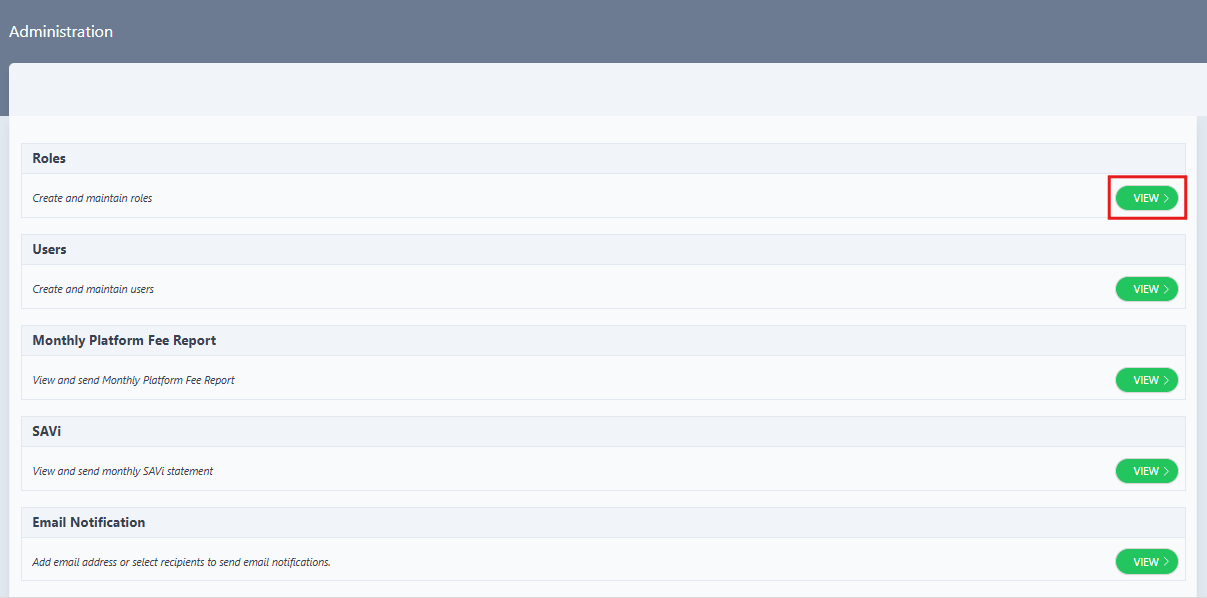
- On the Administration page, locate the Roles section
- The Roles section displays:
- Title: "Roles"
- Description: "Create and maintain roles"
- Click the VIEW > button on the right side of the Roles section
View Roles List
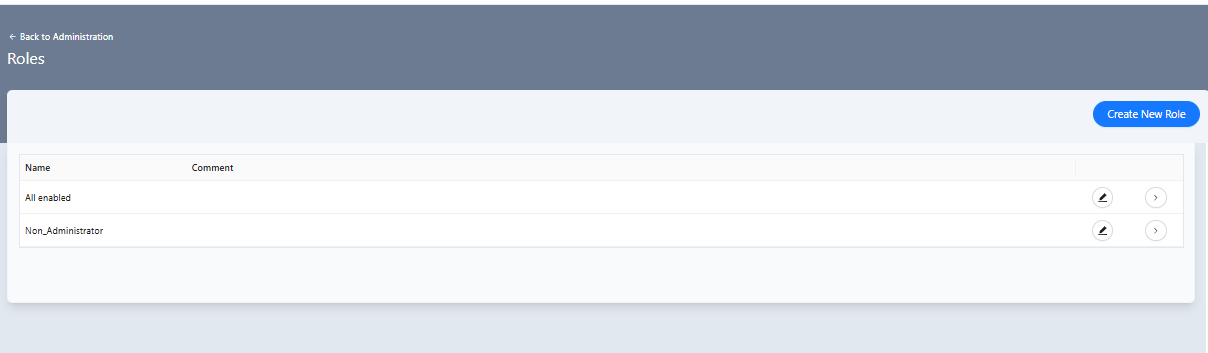
- The Roles page opens, displaying a list of existing roles
- The Roles page shows:
- A Create New Role button in the top right corner
- A table listing existing roles with columns for "Name" and "Comment"
- Action icons (edit and view) for each role
Select Role to Edit
- Locate the role to edit in the roles list table
- Click the Edit icon
 next to the role to modify
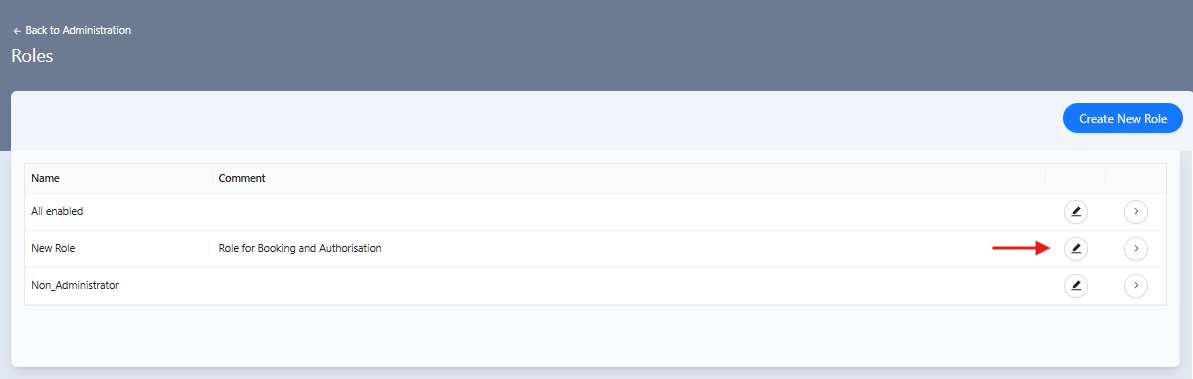
Alternatively:
- Click the View icon (
>) to view the role details first - On the View Role page, click the EDIT button to modify permissions
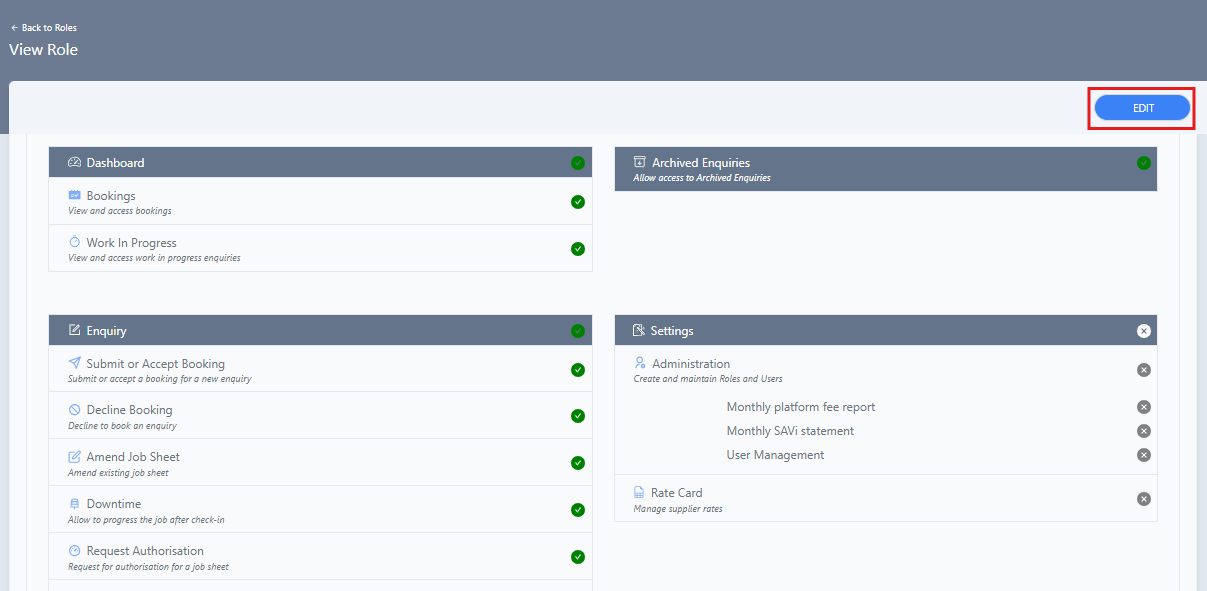
Edit Role Page
- The Edit Role page opens, displaying:
- Role name and comment fields at the top (editable fields that can be modified if needed)
- Permission sections organised by feature area (Dashboard, Enquiry, Settings, Archived Enquiries)
- Toggle switches for each permission indicating current status (enabled/disabled)
- Save and Cancel buttons
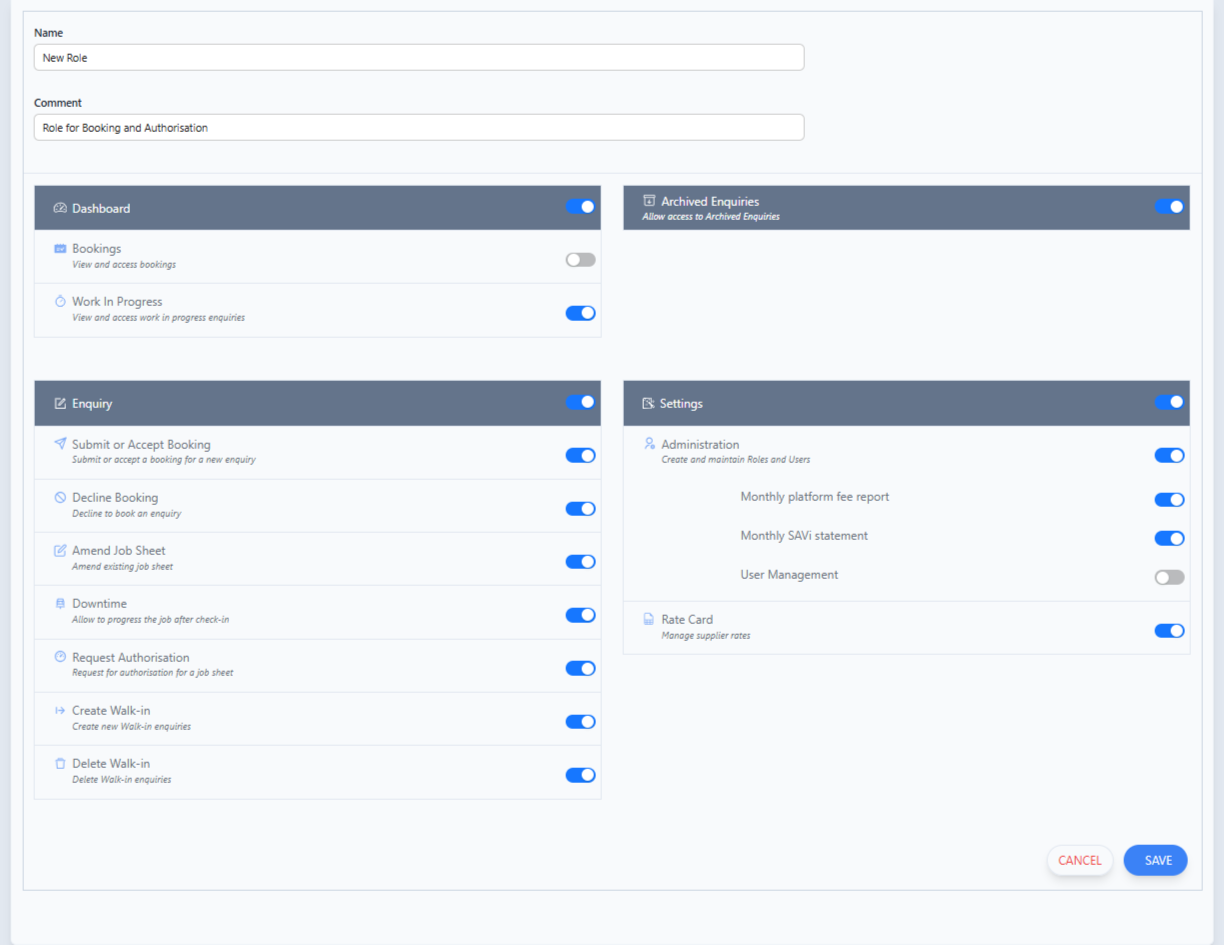
Configure Role Permissions
- Review the permission sections available for the role
- Use the toggle switches to enable or disable specific permissions
Role Permissions Reference Table
The following sections provide a comprehensive list of available role permissions organised by category. Categories can be toggled on/off, and when enabled, individual permissions can be configured within each category:
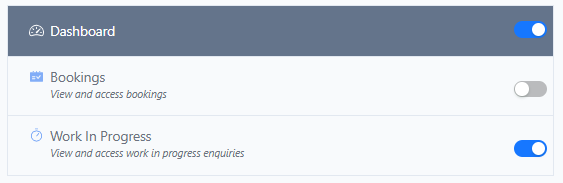
Dashboard
Controls access to dashboard features including bookings and work in progress enquiries. This category can be toggled on/off.
| Permission | Description |
|---|---|
| Bookings (View and Access Bookings) | Allows users to view and access booking information on the dashboard |
| Work In Progress (View and Access work in progress enquiries) | Enables users to view and access work in progress enquiries on the dashboard |
Enquiry
Manages access to enquiry operations including booking submission, acceptance, decline, job sheet amendments, and walk-in management. This category can be toggled on/off.
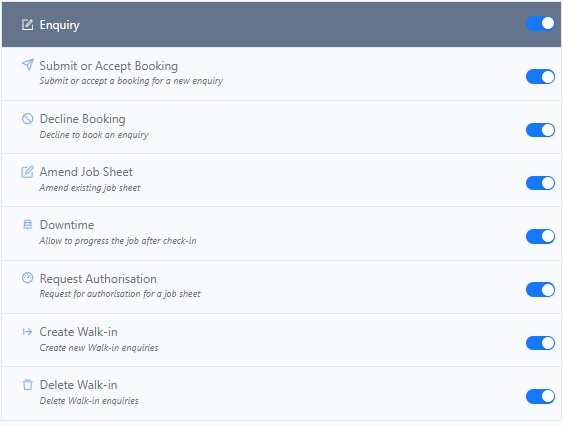
| Permission | Description |
|---|---|
| Submit or Accept Booking | Allows users to submit new bookings or accept existing booking requests |
| Decline Booking | Enables users to decline booking requests |
| Amend Job Sheet | Allows users to modify and update job sheet information |
| Downtime (Allow to progress the job after checkin) | Enables users to progress jobs after vehicle check-in, allowing downtime management |
| Request Authorisation | Allows users to request authorisation for job sheets |
| Create Walk In | Allows users to create walk-in enquiries |
| Delete Walk In | Enables users to delete walk-in enquiries |
Settings
Controls access to system settings including administration functions, reports, user management, and rate card management. This category can be toggled on/off.
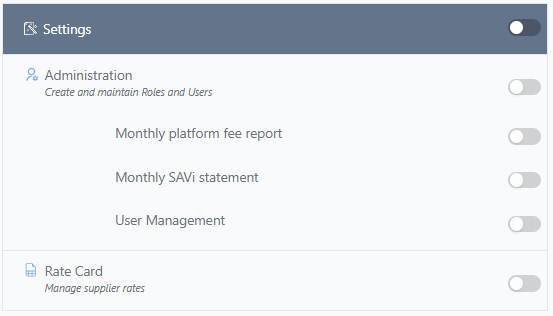
| Permission | Description |
|---|---|
| Administration (Create and maintain Roles and Users) | Allows users to create and maintain roles and user accounts in the administration section. If this permission is disabled, the sub-permissions (Monthly Platform Fee Report, Monthly SAVi Statement, User Management) are also not applicable |
| → Monthly Platform Fee Report | Controls access to Monthly Platform Fee reports within the Administration section |
| → Monthly SAVi Statement | Controls access to Monthly SAVi Statement reports within the Administration section |
| → User Management | Manages access to user management functions within the Administration section |
| Rate Card (Manage supplier Rates) | Allows users to manage supplier rates through the rate card functionality |
Archived Enquiries
Enables users to access archived or historical enquiries. This category can be toggled on/off directly without sub-permissions.

Some permissions have cross-category dependencies:
- Dashboard Bookings Dependency: If the Bookings (View and Access Bookings) permission in the Dashboard category is disabled, then even if Submit or Accept Booking and Decline Booking permissions in the Enquiry category are enabled, users will still be denied permission to accept or decline bookings. The Dashboard Bookings permission must be enabled for booking acceptance and decline operations to function.
- Work In Progress Dependency: If the Work In Progress (View and Access work in progress enquiries) permission in the Dashboard category is disabled, then even if Amend Job Sheet, Downtime, and Request Authorisation permissions in the Enquiry category are enabled, users will still be denied permission to amend job sheets, manage downtime, or request authorisation. The Work In Progress permission must be enabled for these operations to function.
Modify Permissions
- Navigate through the permission sections
- For each permission to change:
- Click the toggle switch to enable (ON) or disable (OFF) the permission
- Enabled permissions are shown with the toggle in the ON position

- Disabled permissions are shown with the toggle in the OFF position

Save Changes
- After configuring the desired permissions, click the Save button
- The system validates the permission changes
- A confirmation message appears indicating the role has been updated successfully

- The page may redirect to the View Role page or return to the Roles list
To cancel the permission changes, click the Cancel button. Any unsaved changes will be discarded and the role will retain its previous permission settings.
What Happens Next
- Permissions Updated: The role's permissions are saved and immediately effective
- User Access Changed: Users assigned to this role will have their access updated based on the new permissions
Troubleshooting
Edit button not visible
Problem: The Edit icon is not displayed for a role in the roles list.
Solutions:
- Verify the account has administrator permissions
- Contact the system administrator if the issue persists
Cannot enable child permission
Problem: A child permission toggle cannot be enabled even when clicked.
Solutions:
- Check if the parent permission is enabled
Changes not saving
Problem: Permission changes are not being saved when clicking Save.
Solutions:
- Check for validation error messages on the page
- Ensure all required fields are properly filled
Related Tasks
- Add New Role: Create a new role with custom permissions
- Assign Role to Users: Assign the updated role to users who need this level of access
Status: Draft
Category: Protected
Authored By: Arun Kumar on December 04, 2025
Revisions