How to edit a user of a supplier account
Goal
Edit user details such as name, email, mobile number, role, and site assignments so that user information remains accurate and up-to-date in the system.
Related Articles
- Invite a New User (link when published)
Navigate to Administration
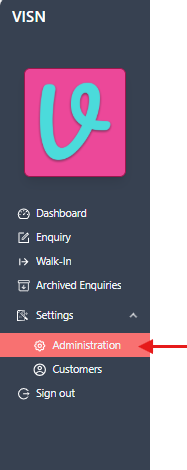
- From the left navigation menu, expand
Settingsby clicking on it - Select
Administrationfrom the Settings submenu
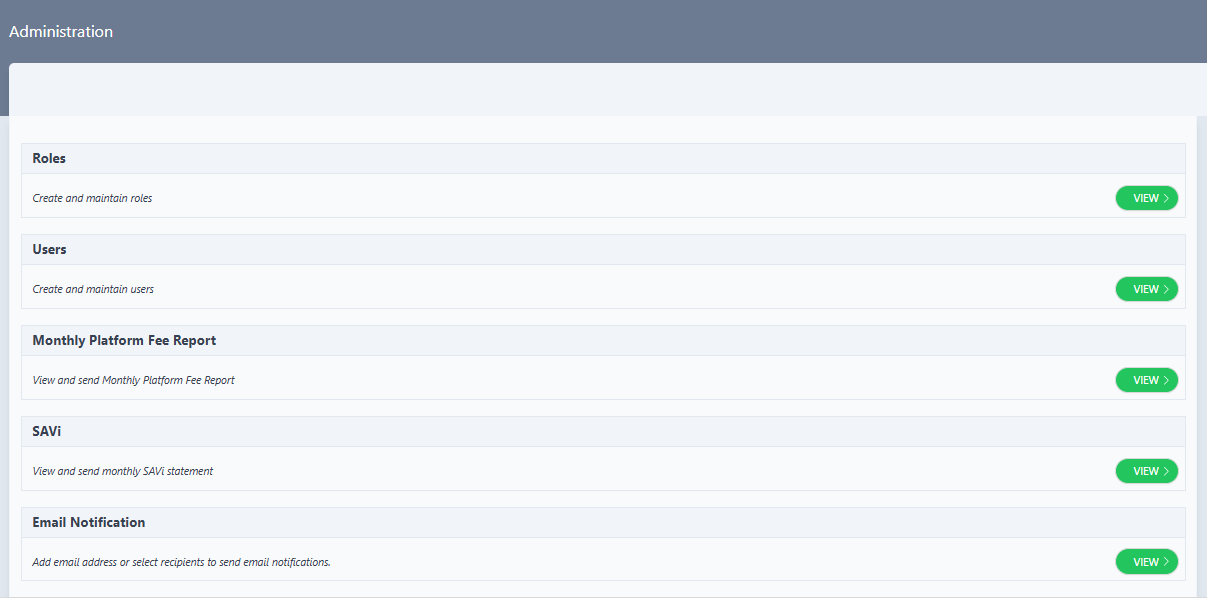
- The Administration page displays with several administrative options
Access Users Management
- On the Administration page, locate the Users section
- The Users section displays:
- Title: "Users"
- Description: "Create and maintain users"
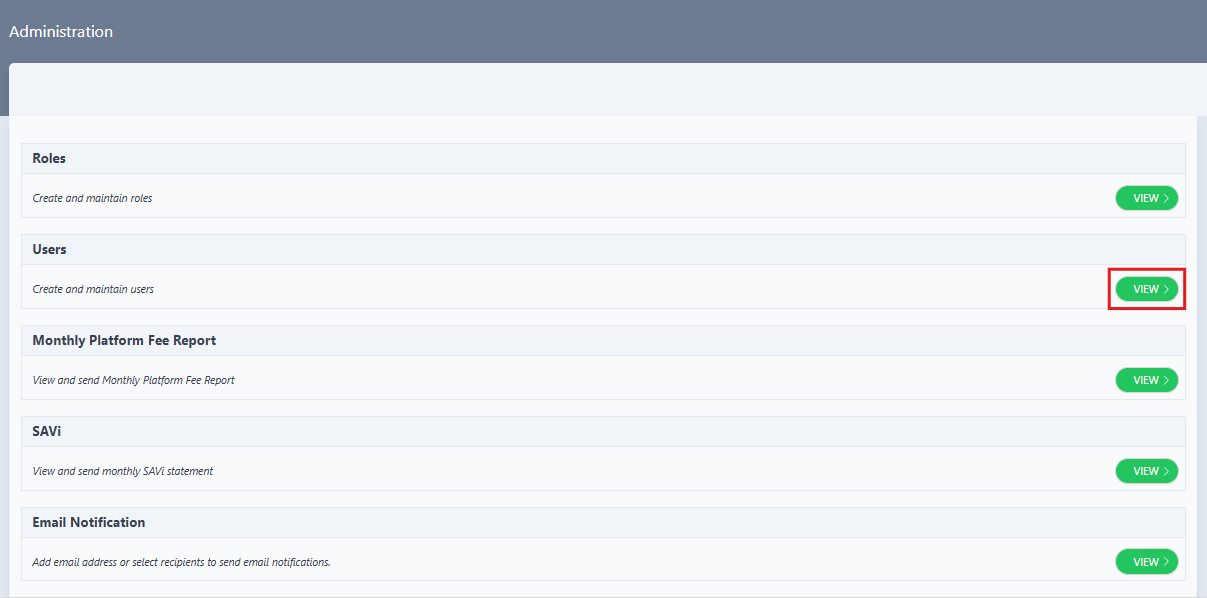
- Click the
VIEW >button on the right side of the Users section
View Users List
- The Users page opens, displaying a list of existing users
- The Users page shows:
- A search bar to filter users by name or email
- A table listing existing users with relevant information
- Action icons for managing users (delete, edit, view details)

Locate the User to Edit and Open Edit User Drawer
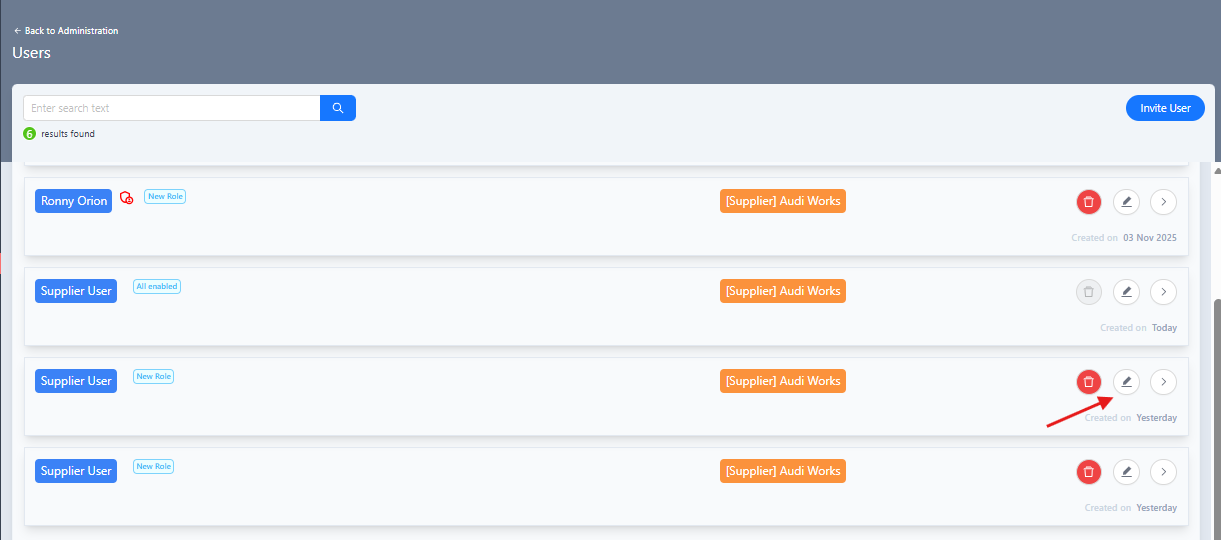
- In the user list, locate the user entry to be edited
- Each user entry displays:
- User name
- Role
- Associated supplier site
- Action buttons on the right (delete, edit, view details)
- Creation date
- Click the edit icon on the user entry to be modified
- The Edit User drawer opens, displaying the current user information
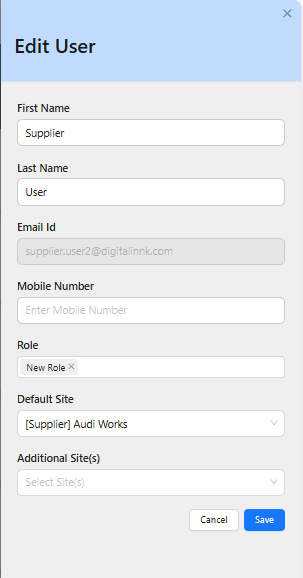
Update User Information
- In the "Edit User" drawer, modify the following information as required:
- First Name: Update the user's first name
- Last Name: Update the user's last name
- Email Id: This field is read-only and cannot be edited
- Mobile Number: Enter or update the mobile number
- Role:
- Remove the existing role if required
- Select a new role or add roles as needed
- Default Site: Select the default site from the drop-down menu
- Additional Site(s): Select additional sites if the user requires access to multiple sites
User Editing Best Practices
- Ensure role changes align with the user's responsibilities
- Confirm site assignments match the user's access requirements
- Note that the email address cannot be changed once the user is created
Cancel Option
To cancel editing, click the Cancel button or the X icon in the top right corner of the drawer. Any unsaved changes will be discarded.
Save Changes
- Review all entered information to ensure accuracy
- Click the
Savebutton to save the updated user details - The drawer closes and a success notification appears in the top right corner of the screen confirming the update
- The notification displays:
- A green tick icon
- Title: "User Details Saved"
- Message: "User details saved successfully"
- The notification automatically disappears after a few seconds

Automatic Updates
After saving, the user's information is immediately updated in the system. Changes are reflected the next time the user logs in or when their profile is viewed.
Verify Changes
- The Edit User drawer closes automatically after successful save
- Changes can be verified by clicking the view details icon (
>) on the same user entry - The User Details dialog displays the updated information

Troubleshooting
User Management View button is disabled
Problem: The "View >" button is disabled on the Administration page.
Solutions:
- Verify that the account has administrator permissions
- Check that the logged-in account has user management access
- Contact the system administrator if the issue persists
Changes not saving
Problem: Clicking Save does not update the user information.
Solutions:
- Check for validation errors (red text below fields)
- Ensure the account has the necessary permissions to edit users
- Contact support if the issue persists, providing the user's email and timestamp
Role changes not applying
Problem: User's permissions haven't changed after updating their role.
Solutions:
- Request that the user logs out and logs back in to refresh their session
- Verify that the role was correctly selected and saved
- Check that the role itself has the correct permissions configured
- If issues persist, contact support with the user's email and role name
Related Tasks
- Invite New User: Add a new user to the system with appropriate roles and site access
Status: Draft
Category: Protected
Authored By: Arun Kumar on December 10, 2025
Revisions