How to resend an invite to a user in a supplier account
Goal
Resend an invitation email to a user who has not received the original invitation or whose invitation has expired. This allows the user to receive a new registration link to complete their account setup.
Related Articles
- Invite a New User (link when published)
- Edit User Details (link when published)
- Delete a User (link when published)
Navigate to Administration
- From the left navigation menu, expand
Settingsby clicking on it - Select
Administrationfrom the Settings submenu
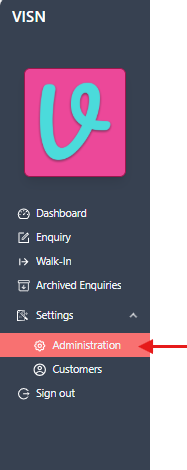
- The Administration page displays with several administrative options
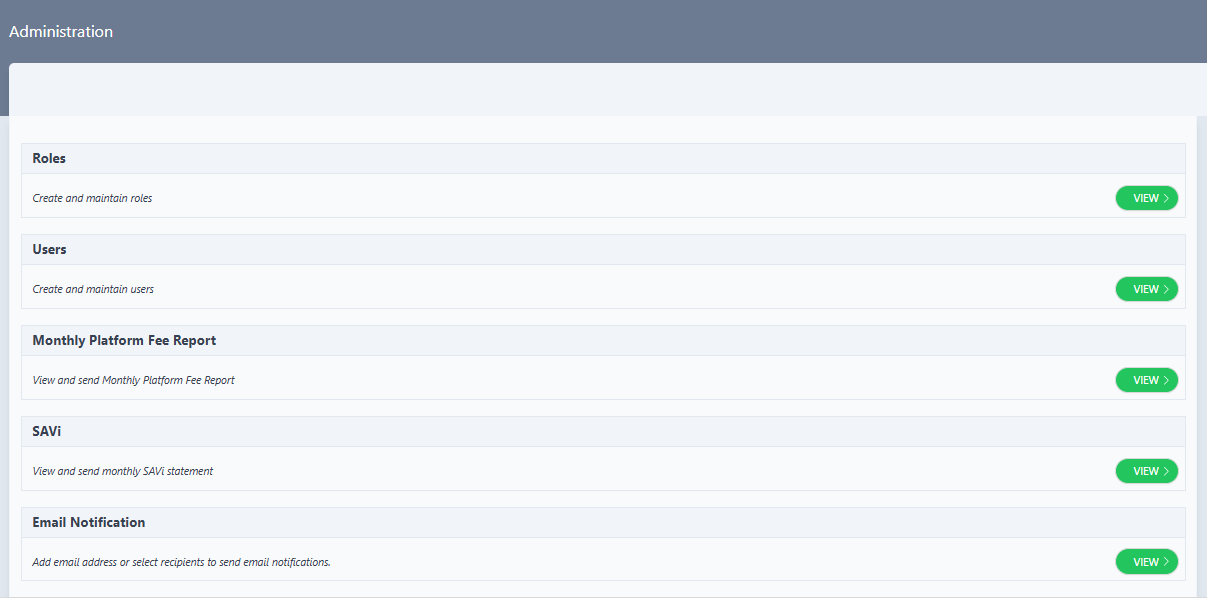
Access Users Management
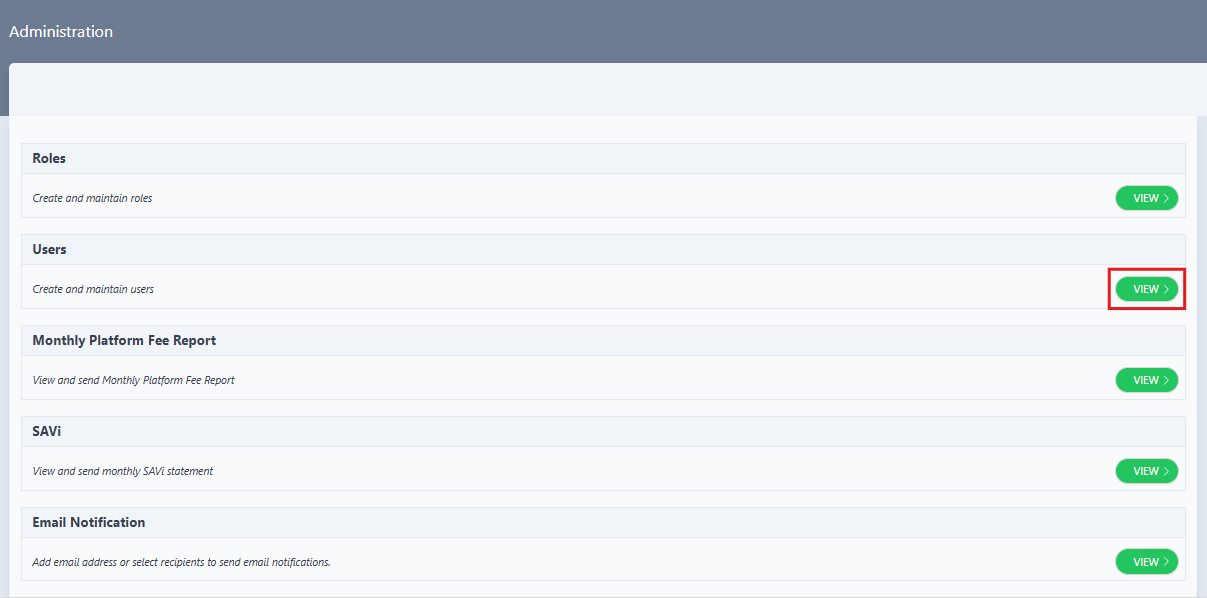
- On the Administration page, locate the Users section
- The Users section displays:
- Title: "Users"
- Description: "Create and maintain users"
- Click the
VIEW >button on the right side of the Users section
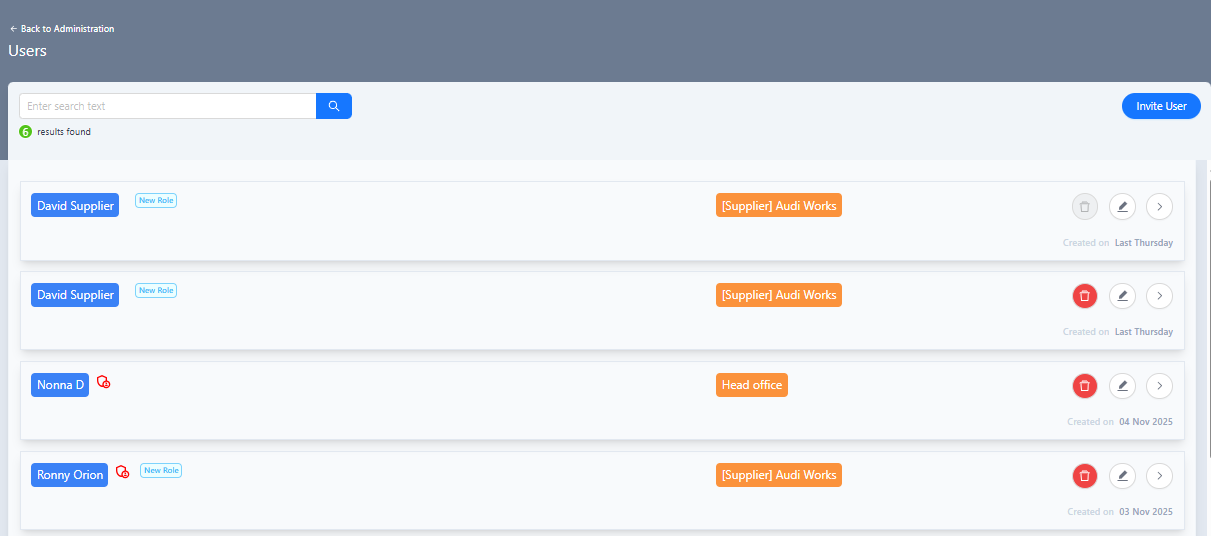
View Users List
- The Users page opens, displaying a list of existing users
- The Users page shows:
- A search bar at the top to search for users
- An
Invite Userbutton in the top right corner to invite new users - A table listing existing users with relevant information
- Action icons for managing users
Open User Details Drawer
- Click the View User icon (
>) in the action icons column on the right side of the user for whom you want to resend the invitation - The User Details drawer opens, displaying detailed information about the selected user
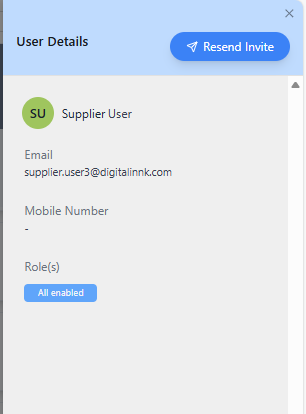
Resend Invitation from User Details Drawer
- The User Details drawer shows:
- User information (name, email, mobile number, roles)
- A "Resend Invite" button in the drawer header
Resending an invitation will send a new invitation email to the user. The previous invitation link (if any) may become invalid once a new invitation is sent.
- Click the "Resend Invite" button in the drawer header to resend the invitation
Confirm Resend Invitation
-
The drawer closes and a success notification appears in the top right corner of the screen confirming the invitation has been resent
-
The notification displays:
- A green tick icon
- Title: "Invite Resent"
- Message: "xxxx Invite has been resent successfully"
-
The notification automatically disappears after a few seconds

What Happens Next
- New Invitation Email Sent: A new invitation email is sent to the user's email address
- Email Content: The invitation email contains:
- A header with "Invitation to Join" title
- A welcome message from the supplier group inviting the user to join the VISN platform
- Instructions to join and contact information for assistance
- A prominent
CLICK TO JOINbutton that links to the registration page - Footer indicating "Sent by VISN"
- Previous Invitation: The previous invitation link (if any) may no longer be valid
- User Registration: The user can click the new invitation link to complete registration. For detailed steps, see [Registration section in Invite User] (link when published)
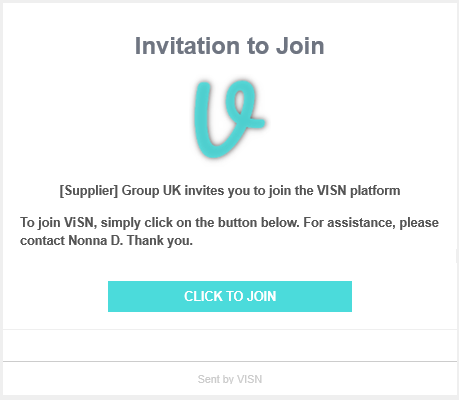
The invitation email is typically delivered within a few minutes. If the email is still not received, check the spam/junk folder or verify the email address is correct.
Troubleshooting
User Management View button is disabled
Problem: The "View >" button is disabled on the Administration page.
Solutions:
- Verify the account has administrator permissions
- Check that the logged-in account has user management access
- Contact the system administrator if the issue persists
Resend Invite button not visible in User Details drawer
Problem: The "Resend Invite" button is not visible in the User Details drawer header.
Solutions:
- Verify that the user's status allows for invitation resend (users who are already registered may not have this option)
- Contact the system administrator if the issue persists
Invitation email still not received after resend
Problem: The invitation email is still not received after resending.
Solutions:
- Verify that the email address was entered correctly
- Check the spam/junk folder
- Contact support if the issue persists
Related Tasks
- Invite a New User: Send an initial invitation to a new user
- Edit User Details: Modify user information before resending invitation
- Delete a User: Remove a user if invitation is no longer needed
Status: Draft
Category: Protected
Authored By: Arun Kumar on December 10, 2025
Revisions